See it in action.
Watch a walkthrough of the Filing Assistant inserting goods & services and uploading specimens into a live USPTO application.
Install the extension in under a minute.
The Stencil Filing Assistant is a free Chrome extension available to all Stencil customers. It works alongside the USPTO Trademark Center to automate the most tedious parts of filing.
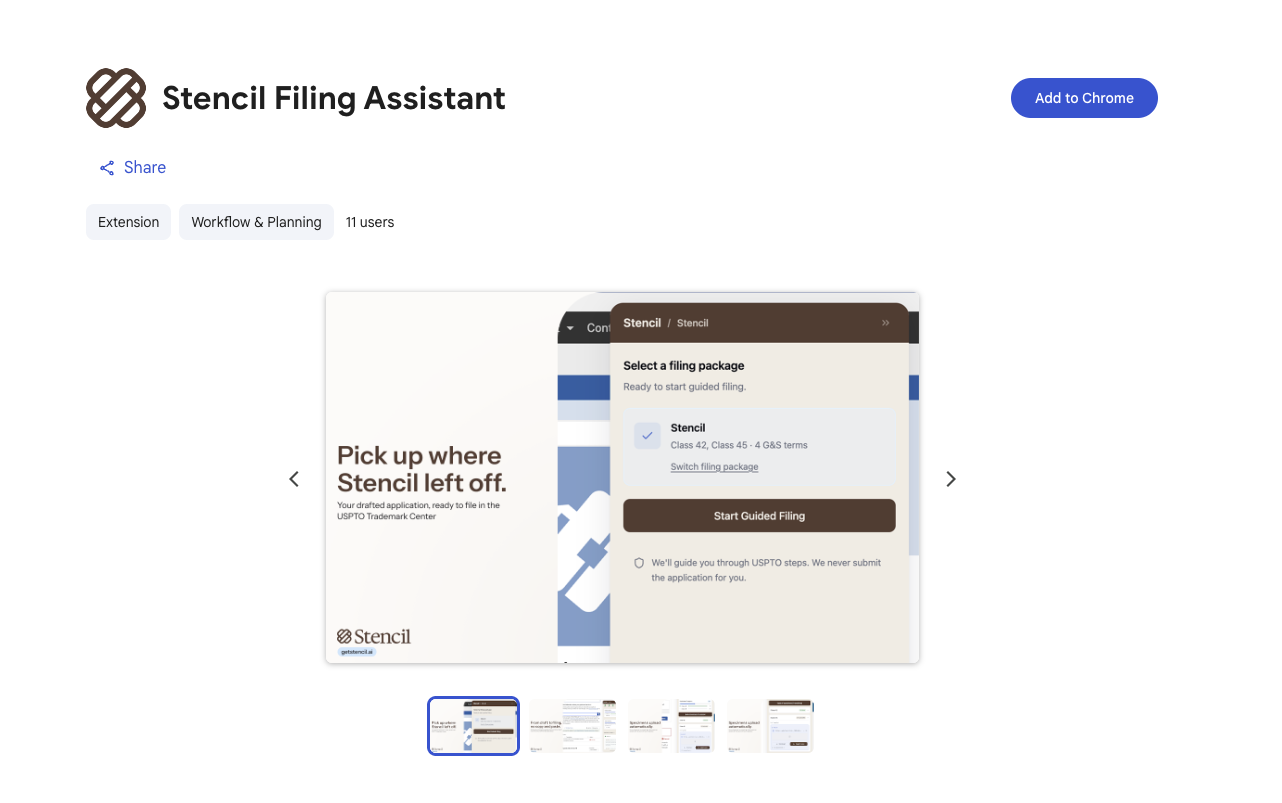
Install from the Chrome Web Store
Visit the Stencil Filing Assistant listing and click "Add to Chrome."
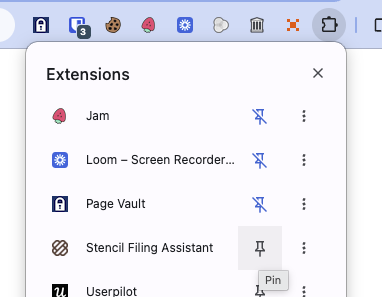
Pin & sign in to Stencil
Click the Extensions puzzle icon in Chrome and pin the Stencil Filing Assistant for easy access. Then click it and sign in with your Stencil account credentials. Your Stencil login does not need to match your USPTO account email.
Go to the USPTO Trademark Center
Navigate to trademarkcenter.uspto.gov and start a new trademark application. The Filing Assistant panel will automatically appear in the top right corner of your screen.
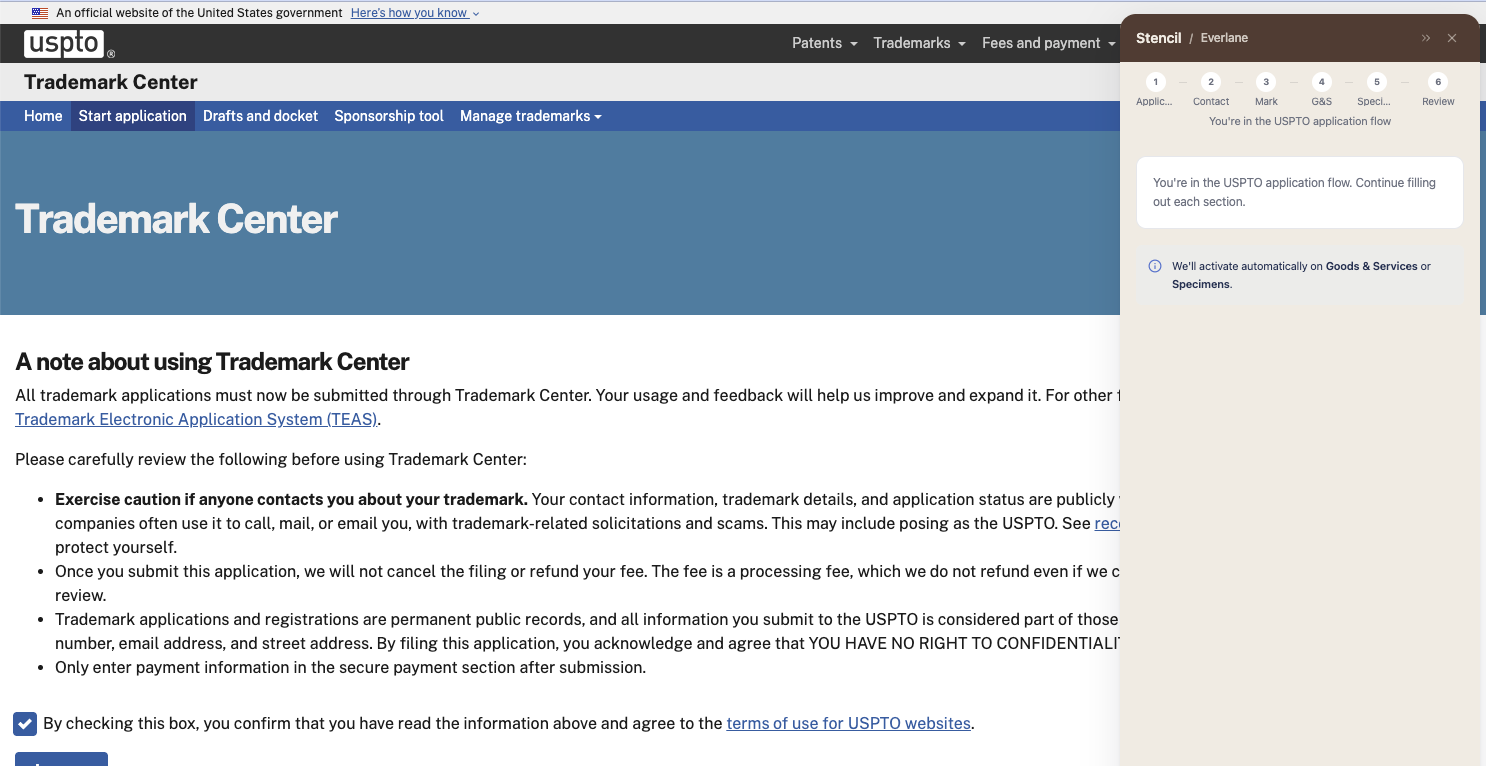
The Filing Assistant only activates when you're on the USPTO Trademark Center and ready to file an application. It won't open on other websites.
From Stencil to the USPTO, fully automated.
Once you've built your application in Stencil with goods & services confirmed and specimens attached, the Filing Assistant handles the rest. Here's the workflow:
Select your filing package
When the Filing Assistant opens, it pulls in any completed applications from your Stencil account. Select the filing package you want to work on and click "Start Guided Filing."
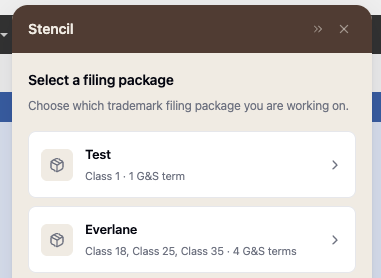
Note: To collapse or exit the extension at any time, use the icons in the top right corner of the Filing Assistant panel.
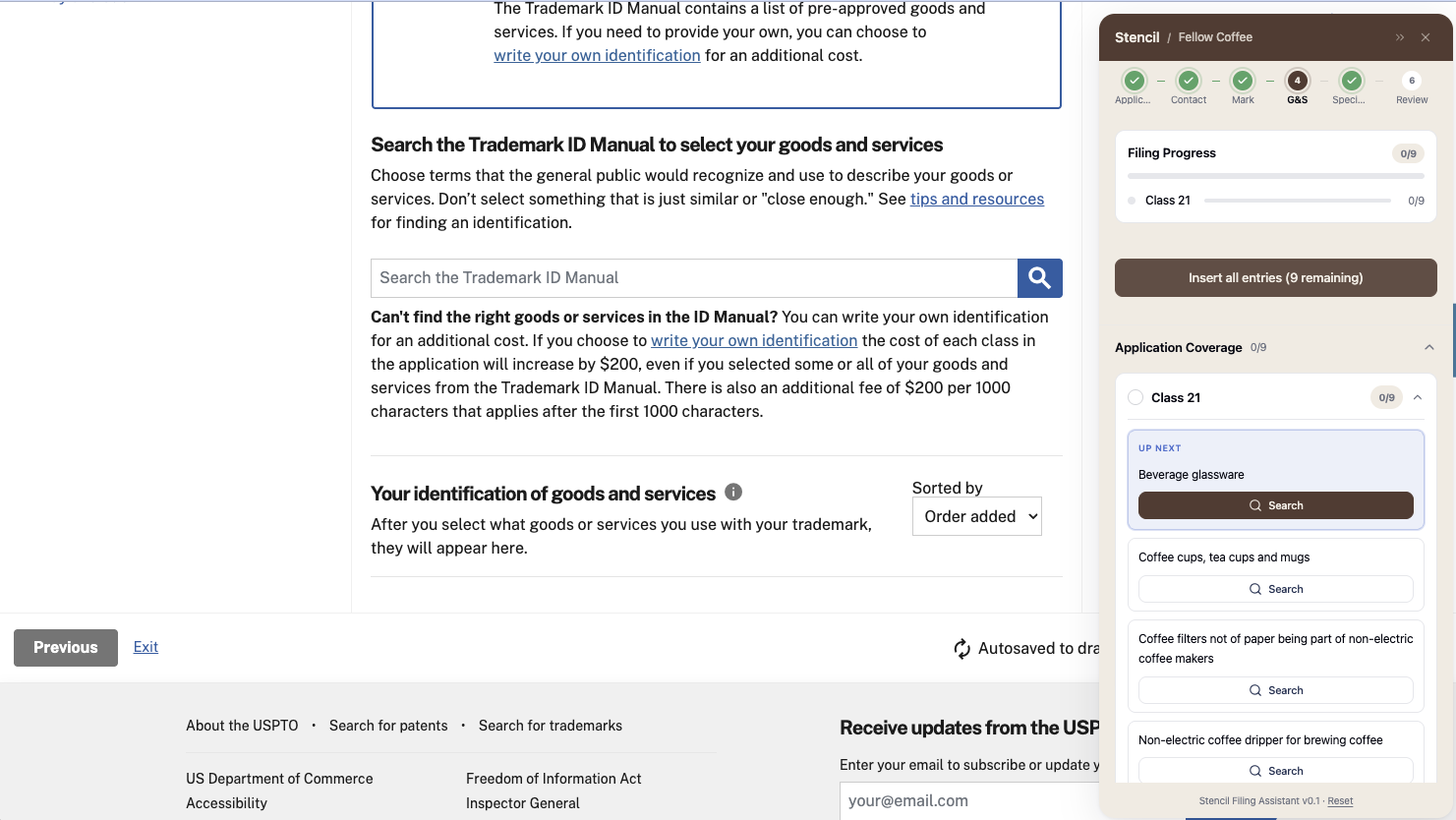
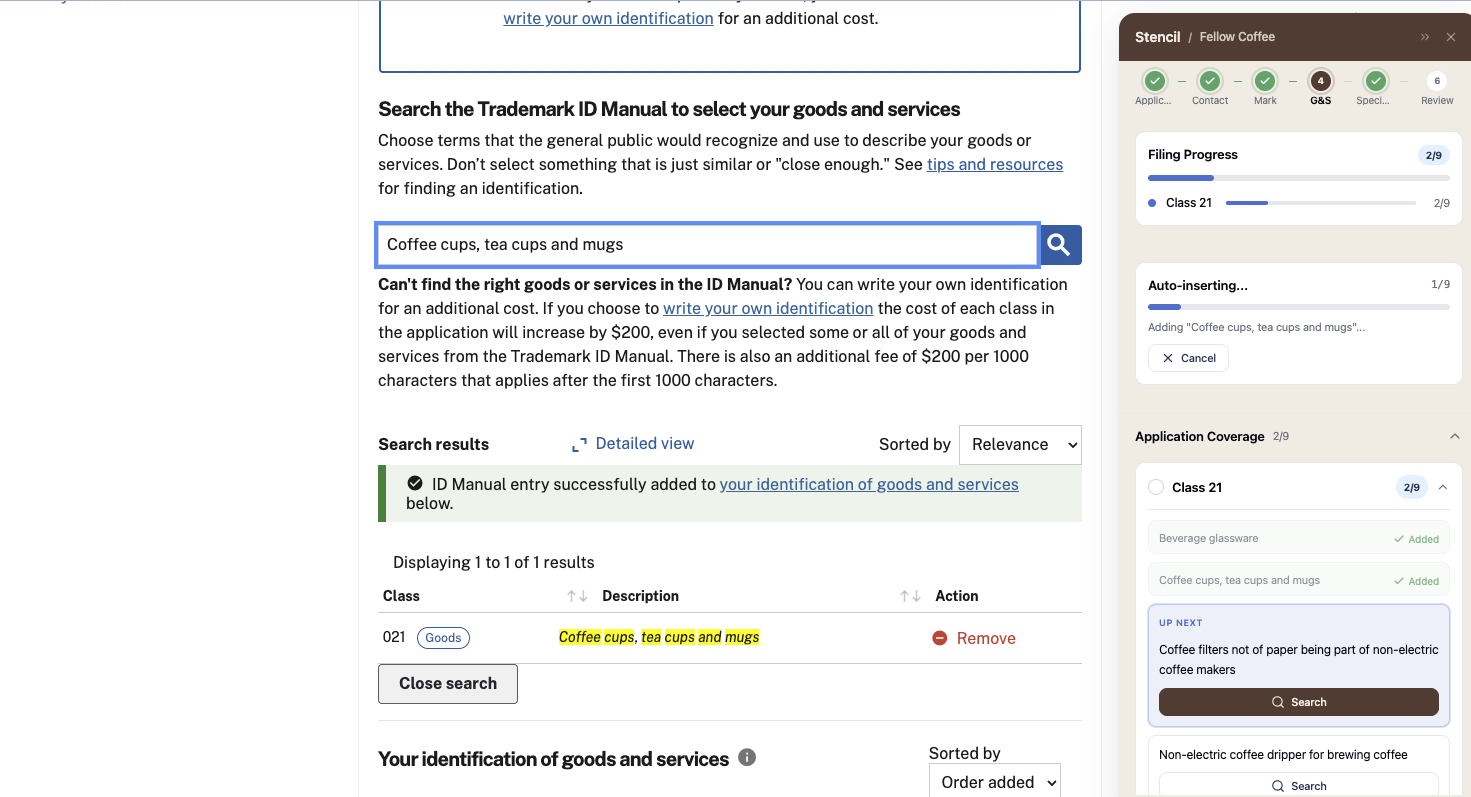
Insert goods & services
The assistant displays all the terms you've selected for your application. You can insert them one by one, or click "Insert All Entries" for full automation. The system searches each entry ID, selects it, and populates any fill-in-the-blank fields. This takes about 20 to 60 seconds depending on how many terms you have.
Upload specimens
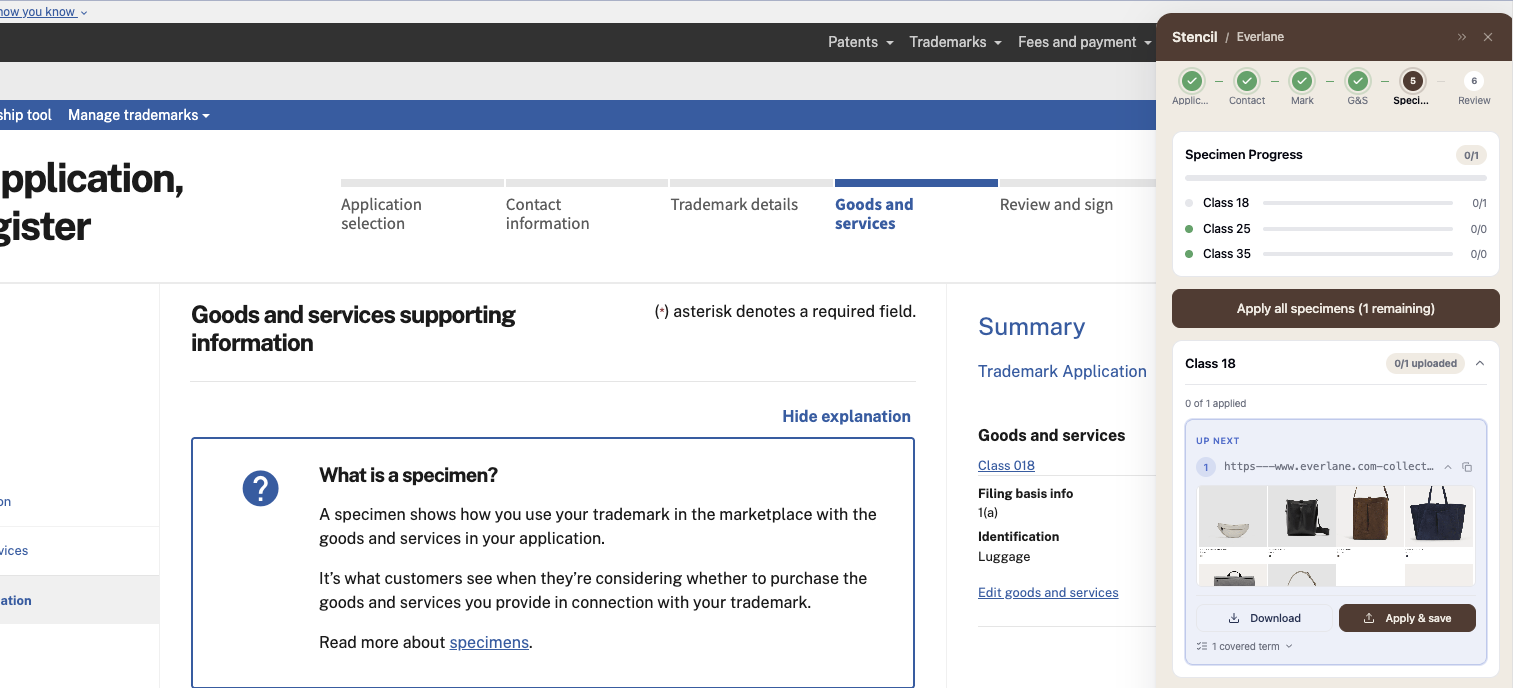
On the specimens page, the assistant can upload each specimen file, populate the goods it applies to, the access date, and the URL. Click "Apply All Specimens" for full automation, or apply them one by one. You can also download specimens to your desktop from this view.
Review and complete
Do a quick check to confirm everything was added correctly, then continue through the remaining USPTO steps to review and submit your application.
Date of first use: The Filing Assistant cannot automatically populate the "Date of First Use" and "Date of First Use in Commerce" fields. You'll need to enter these manually for each specimen upload as a final step.
What the Filing Assistant does.
Bulk goods & services entry
Insert all your terms at once or one by one. The assistant searches each ID, selects it, and moves to the next automatically.
Fill-in-the-blank terms
If a term requires fill-in-the-blank text and you've already populated it in Stencil, the assistant enters it for you automatically.
Automated specimen upload
Uploads specimen files, populates the applicable goods, access date, and URL for each specimen automatically.
Download specimens locally
Download any specimen directly to your desktop from within the Filing Assistant panel if you prefer to upload manually.
Collapsible panel
Minimize, expand, or close the Filing Assistant at any time using the icons in the top right corner. It stays out of your way when you don't need it.
Pause or cancel anytime
During an automated insert, you can click Cancel at any point to pause the process and take over manually.
Frequently asked questions.
No. The Filing Assistant is completely separate from your USPTO account. It works like a password manager: it can see what's on the front end of your screen and can click and enter information, but it has no access to your USPTO credentials or account data.
Never. The Filing Assistant will only insert information on the page you're currently viewing, whether that's goods & services or specimens. It will never navigate to the next page or submit your application. You always remain in full control of the filing process.
No. Your Stencil account and USPTO account are completely independent. You can use different email addresses for each.
Inserting goods & services typically takes 20 to 60 seconds depending on how many terms you have. Specimen uploads may take longer (up to a few minutes for large sets), but you can leave your computer and come back once it's finished.
The "Date of First Use" and "Date of First Use in Commerce" fields cannot be populated automatically. You'll need to go back through each specimen and enter those dates manually.
Visit the Stencil Filing Assistant page on the Chrome Web Store and click "Add to Chrome." Then sign in with your Stencil account.
Having issues?
Make sure you're on trademarkcenter.uspto.gov and have started a new application. The assistant only activates on the Trademark Center when you're in the process of filing. Also check that the extension is enabled in your Chrome extensions settings (chrome://extensions).
Try removing the extension from Chrome and re-adding it from the Chrome Web Store, then sign in again. If the issue persists, contact us at support@getstencil.ai.
Click Cancel to stop the current process, then try inserting the remaining entries again. If the issue continues, refresh the page, and the Filing Assistant will re-open and allow you to resume where you left off.
Visit getstencil.ai or email us at support@getstencil.ai. We're happy to help.
Need more help?
Our team is here to assist. Reach out anytime and we'll get you sorted.
Contact Support